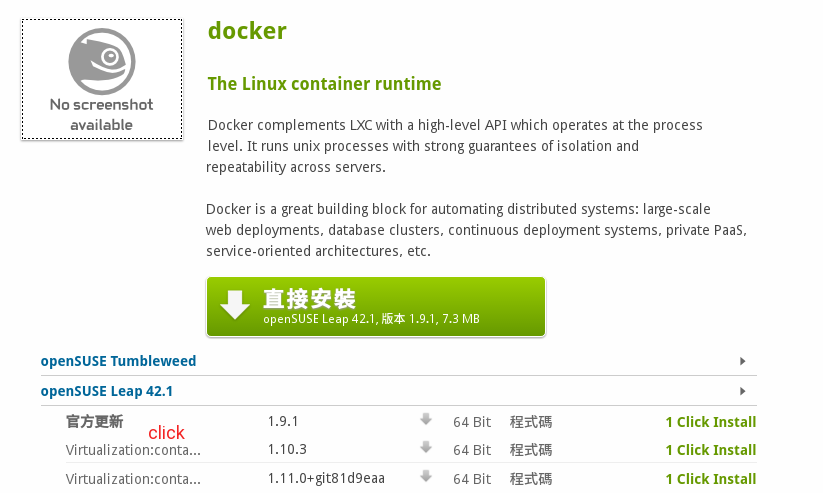
Docker with openSUSE Leap 15
OS: openSUSE Leap 15.0 Beta
Docker version: 17.09.1-ce

Docker is a software technology providing containers, promoted by the company Docker, Inc. Docker provides an additional layer of abstraction and automation of operating-system-level virtualization on Windows and Linux.
Docker implements a high-level API to provide lightweight containers that run processes in isolation.
Because Docker containers are so lightweight, a single server or virtual machine can run several containers simultaneously.
Let’s do some hands on with docker and openSUSE Leap 15
== Install Docker ==
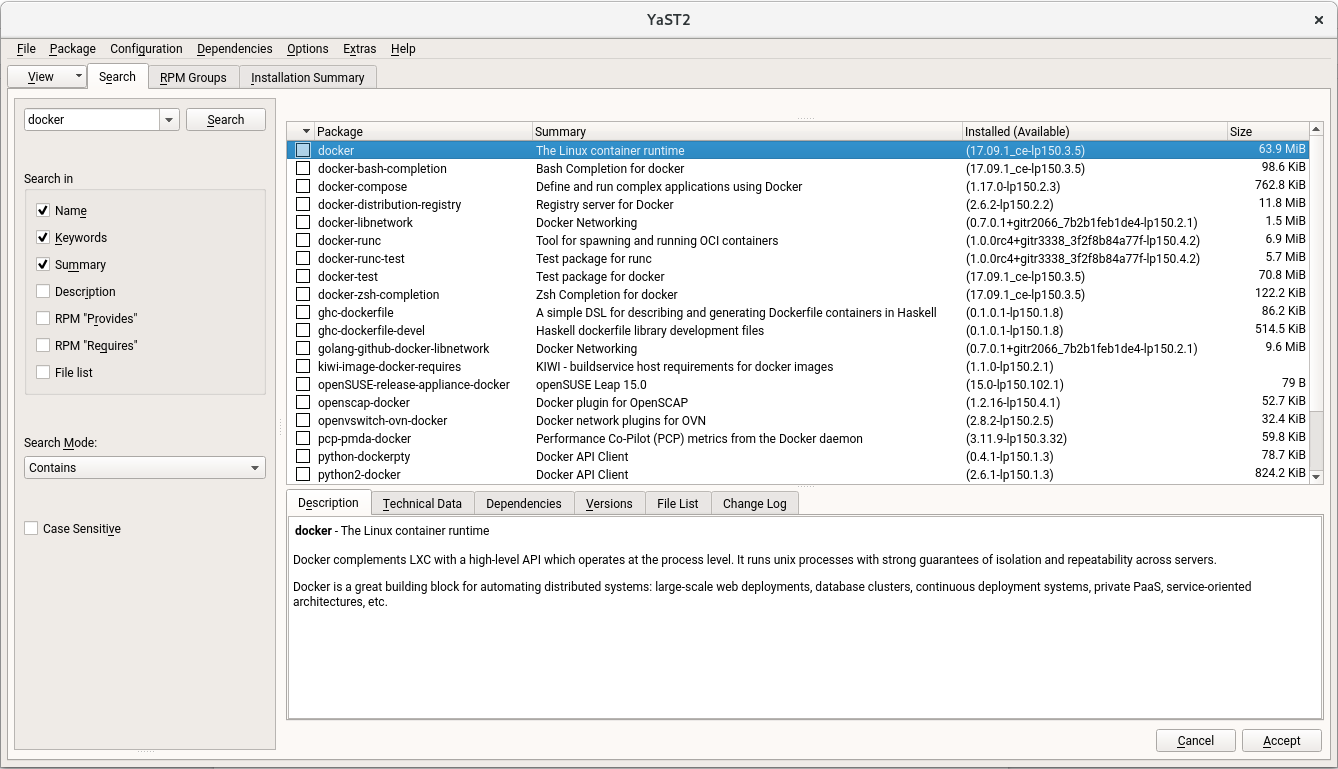
Use GUI method
use yast2 sw_single install docker
# yast2 sw_single
Search docker
Select docker to install
Use command line to install docker
use zypper to install, if you don’t want interactive use #zypper -n install docker
# zypper install docker
Loading repository data...
Reading installed packages...
Resolving package dependencies...
The following 13 NEW packages are going to be installed:
containerd criu docker docker-bash-completion docker-libnetwork docker-runc git-core git-gui gitk libnet9
libsha1detectcoll1 python2-ipaddr python2-protobuf
The following recommended package was automatically selected:
criu
13 new packages to install.
Overall download size: 23.2 MiB. Already cached: 0 B. After the operation, additional 117.1 MiB will be used.
Continue? [y/n/...? shows all options] (y): Y
Check docker version when you install it
# docker --version
Docker version 17.09.1-ce, build f4ffd2511ce9
== Start docker service and setup boot enable ==
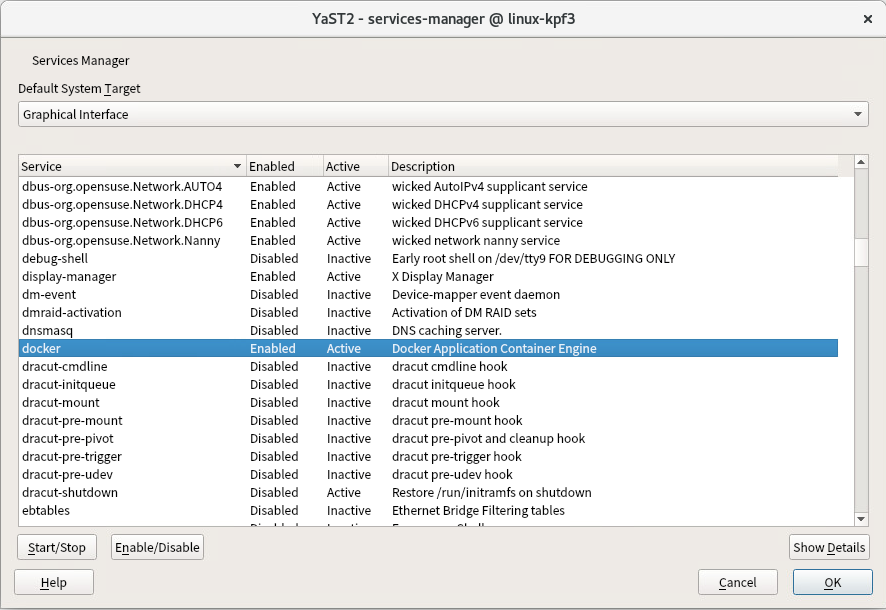
GUI method
Use yast2 services-manager
# yast2 services-manager
click docker
click Start/Stop start docker service
click Enable/Disable Setup boot enable docker service
Click OK
Command line method
use systemctl command
Check docker service status
# systemctl status docker
* docker.service - Docker Application Container Engine
Loaded: loaded (/usr/lib/systemd/system/docker.service; disabled; vendor preset: disabled)
Active: inactive (dead)
Docs: http://docs.docker.com
Start docker service
# systemctl start docker
# systemctl status docker
* docker.service - Docker Application Container Engine
Loaded: loaded (/usr/lib/systemd/system/docker.service; disabled; vendor preset: disabled)
Active: active (running) since Fri 2018-04-27 21:24:09 CST; 3s ago
Docs: http://docs.docker.com
Main PID: 13632 (dockerd)
Tasks: 9
Setup boot enable docker service
Checking boot status
# systemctl is-enabled docker
disabled
Setup boot enable docker
# systemctl enable docker
Created symlink /etc/systemd/system/multi-user.target.wants/docker.service -> /usr/lib/systemd/system/docker.service.
# systemctl is-enabled docker
enabled
== If you want normal user could use docker command ==
The docker package creates a new group named docker. Users, other than root user, need to be part of this group in order to interact with the Docker daemon. You can add users with:
#usermod -a -G docker
Like
#usermod -a -G docker max
Practice: docker basic command
Check Docker version
# docker --version
Docker version 17.09.1-ce, build f4ffd2511ce9
Pull your first docker image
# docker pull busybox
Using default tag: latest
latest: Pulling from library/busybox
f70adabe43c0: Pull complete
Digest: sha256:58ac43b2cc92c687a32c8be6278e50a063579655fe3090125dcb2af0ff9e1a64
Status: Downloaded newer image for busybox:latest
Check your docker images
# docker images
REPOSITORY TAG IMAGE ID CREATED SIZE
busybox latest 8ac48589692a 3 weeks ago 1.15MB
Search docker images on the web
For example, search opensuse

Search docker images with command
# docker search opensuse
NAME DESCRIPTION STARS OFFICIAL AUTOMATED
opensuse This project contains the stable releases ... 230 [OK]
opensuse/portus Production ready Docker image of Portus. 65 [OK]
Get your openSUSE docker images :)
Default is latest if you not order tag
# docker pull opensuse
Using default tag: latest
latest: Pulling from library/opensuse
47aa660240a8: Pull complete
Digest: sha256:569e6ee7a622838b9fa1111c3bfa99a50fdb34b7503f945b7d18ce66bb94a369
Status: Downloaded newer image for opensuse:latest
Check your docker images again
# docker images
REPOSITORY TAG IMAGE ID CREATED SIZE
opensuse latest 35057ab4ef08 6 days ago 110MB
busybox latest 8ac48589692a 3 weeks ago 1.15MB
Get docker image with tag
# docker pull opensuse:42.3
42.3: Pulling from library/opensuse
Digest: sha256:569e6ee7a622838b9fa1111c3bfa99a50fdb34b7503f945b7d18ce66bb94a369
Status: Downloaded newer image for opensuse:42.3
Check your docker images again, you will see opensuse:latest and opensuse:42.3 has the same IMAGE ID because they are the same.
# docker images
REPOSITORY TAG IMAGE ID CREATED SIZE
opensuse 42.3 35057ab4ef08 6 days ago 110MB
opensuse latest 35057ab4ef08 6 days ago 110MB
busybox latest 8ac48589692a 3 weeks ago 1.15MB
Of course, you could pull other images from docker hub, for example
# docker pull sakana/sshd
Using default tag: latest
latest: Pulling from sakana/sshd
Digest: sha256:8f140e190db2d683b36cbac1d57410cdfb67029c4580b7b3aad3730005936544
Status: Downloaded newer image for sakana/sshd:latest
Practice: Run docker container
Know your docker container status before you go
You will not see anything when you use #docker ps command
# docker ps
CONTAINER ID IMAGE COMMAND CREATED STATUS PORTS NAMES
# docker ps -a
CONTAINER ID IMAGE COMMAND CREATED STATUS PORTS NAMES
Run your first docker container with openSUSE
# docker run --rm -i -t opensuse /bin/bash
- run execute docker
- --rm Automatically remove the container when it exits
- -i Keep STDIN open even if not attached
- -t Allocate a pseudo-TTY
In the container
You could try to echo $HOSTNAME to check you are in docker contaienr now.
00172605a6e5:/ # echo $HOSTNAME
00172605a6e5
Leave the container
00172605a6e5:/ # exit
exit
Check docker container status with #docker ps
# docker ps
CONTAINER ID IMAGE COMMAND CREATED STATUS PORTS NAMES
# docker ps -a
CONTAINER ID IMAGE COMMAND CREATED STATUS PORTS NAMES
Run docker container again without --rm
# docker run -i -t opensuse /bin/bash
Leave the docker container
62d16d591ad0:/ # exit
exit
Check docker container status with #docker ps
You will find -- if you not use --rm option, docker container will not remove from your host.
# docker ps
CONTAINER ID IMAGE COMMAND CREATED STATUS PORTS NAMES
# docker ps -a
CONTAINER ID IMAGE COMMAND CREATED STATUS PORTS NAMES
62d16d591ad0 opensuse "/bin/bash" About a minute ago Exited (0) About a minute ago quizzical_almeida